ResearchED Warrington Sketch-notes
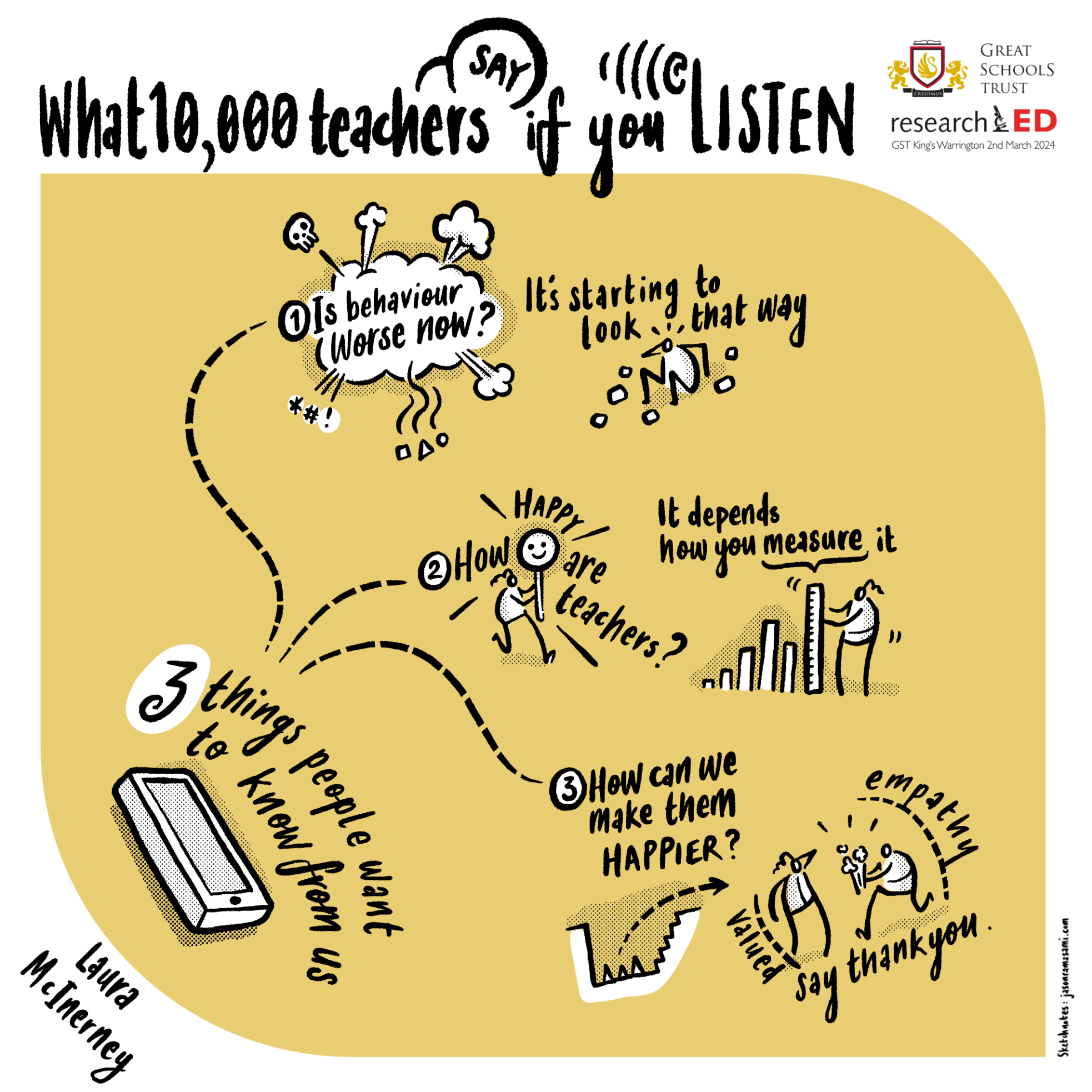
Thankyou Michael Chiles and the Great Schools Trust for the invite to do some visual scribing for the keynote speakers at this impressive event back in February. Here are the final pieces:
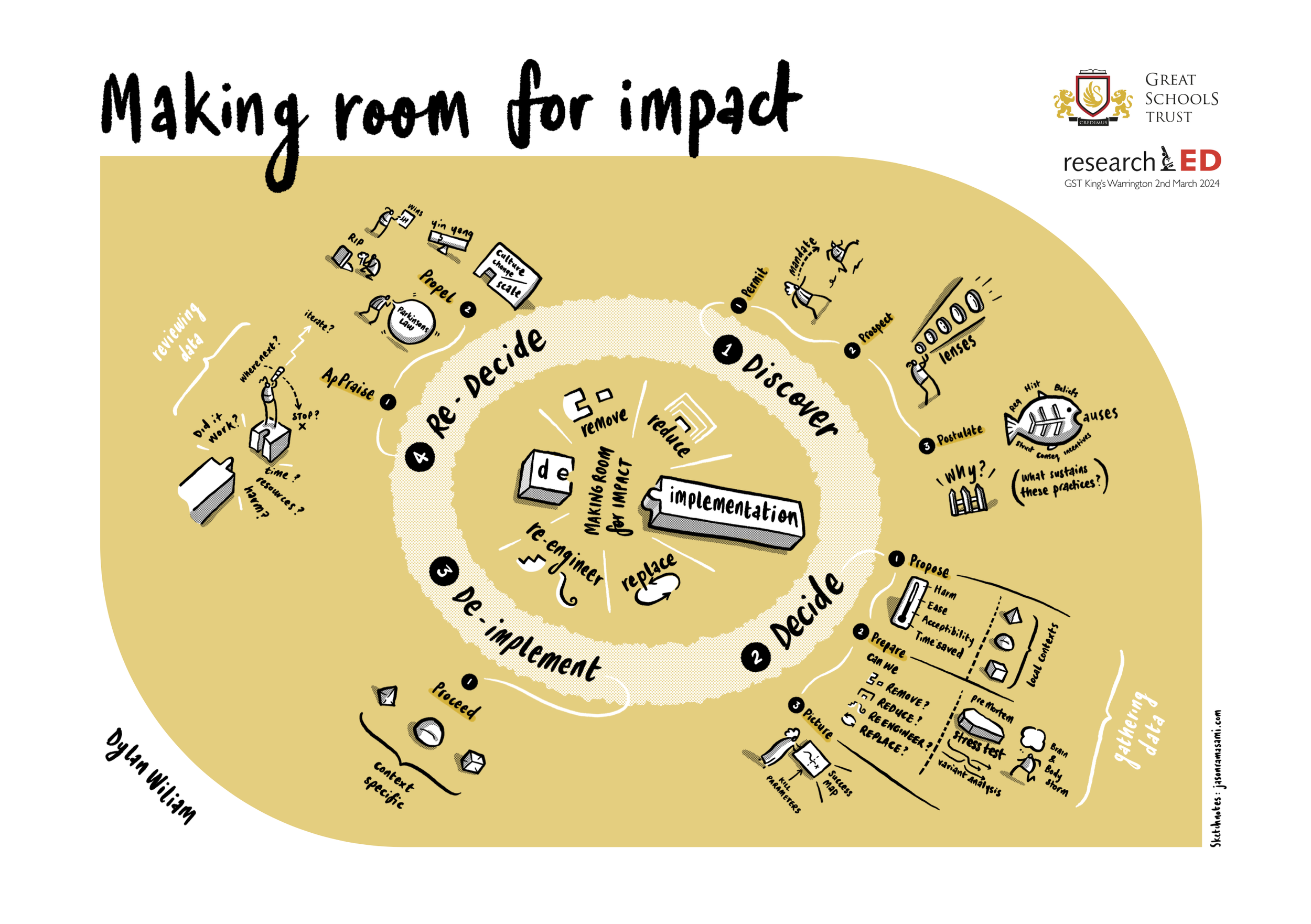
This was based on Dylan Wiliam’s main talk - a decent quality pdf can be downloaded here.



Towards an 'Animated-Sketchnotes' Toolkit
For a long time I have been obsessed with sketch notes.
Throughout my many lessons in various schools this was often a primary mode of communication: as I explained something to the class I would usually reach for a pen and start drawing something on the board. Words alone weren’t enough - often the combination of a visual summary would make the difference to a student really grasping what I was trying to say.¹
Another feature of this mode (which is surprisingly easy to forget) is the development of those notes in time. At the start of the explanation there are less marks on the board - as the explanation progresses, these fill out and create a more dense picture (duh). But as basic as this sounds, it is easy to forget - especially when you hand someone the final set of notes that make perfect sense to anyone who sat through the class - but are utterly baffling to anyone who wasn’t there for the ride through time.

This made sense as I drew it while listening to a podcast, but coming to it cold it can feel a little overwhelming.
Animated sketch notes occupy a uniquely privileged niche here: they enable the learner to digest material without overdoing things cognitively. An explanation unfolding in time is notoriously hard to get right, but if it can be mastered it absolutely rocks as a member of the online teacher’s toolkit.
The Highest Standard
When the awesome team at Cognitive started going viral online with their RSA collaborations there was a simple reason why: animated sketch notes are a powerful teaching tool and they had figured out how to do it really well. Here is a prime example from 2016. It combines a brilliant explanation of Economics with an incredibly complex set of illustrations that are animated expertly by what must have been a very well paid and hardworking team.
Faced with examples like this it is easy to feel more that a little intimidated, but I have been fortunate to have had the opportunity in my freelance and daytime work to develop my own approach and style.
Early Steps
The presentation below was a slideshow created using Clip Studio drawings and Keynote. It does the job simply with a sequence of images in time, supporting the lecture summary.
After this I explored more complex ways of expressing imagery and created this proof of concept. This was one of my first successful steps into using Apple Motion. For this video below I mainly combined screen-captured hand drawings, text-animations and write-on behaviours for lines. I wanted to break the static-slide mould.
The Midway Point…
From here I had the opportunity to create something a lot more adventurous - a short piece about the practice of teaching Religion and Worldviews for the RE Council.
The thing that was particularly satisfying about this piece was that I got to interview several talented teachers who really knew their stuff. Working with voiceover and soundtrack artists was also a lot of fun. I loved that this was a significant step closer to the style I had imagined myself reaching. The animation itself consists primarily of screen-captured drawings (using Procreate I think) and some crude masking which to be honest I wasn’t completely happy with (or sure of) at the time.
From here I continued the adventure with a personal piece that tries to capture how I make Biryani. There were steps forward but I was also struggling with how to control lots of elements effectively on screen.
I had begun to experiment with animating hand drawn masks instead of drawing everything in real-time. It enabled a bit more control but I was still finding myself somewhat confused at times as the walls of the software began to crowd in on me. Either way it was a win for the Indian-cuisine-animating sketch-note community.
A Functioning Toolkit?
Thankfully, in the last month or so I have at last figured out how to animate discrete elements in a way that feels like a more assured conclusion to this process.
In January I created a short film that functions as an announcement for several research projects being undertaken in the Crosslands Cultivate programme. The short excerpt below combines drawn imagery with an edited voice recording I made after conducting an interview on zoom.
In a similar vein, here is another excerpt from something I made this week: a personal response to a lovely book by David I. Smith which really feeds into the idea of creating hospitable learning experiences.
The book felt important enough to share and I want to extend my confidence with this emerging toolkit.
Both of the pieces embedded above are examples of something which finally feels like a re-usable toolkit - or visual language - that I can control with reasonable success.
Part of this victory comes down to figuring out how to nest discrete stages/elements within groups, getting the correct blend-modes in place and animating masks for carefully-separated drawn chapters.
In the early days of using digital tools - and Apple Motion especially - I would often turn up with the best intentions and end up feeling utterly depressed as the inputs weren’t matching the outputs. The last two pieces feel like something has changed.
Process notes (for the nerds who got this far)
1. Source material gathered/digested/assimilated
this might mean reading something and summarising it with visuals/text, interviewing people and editing the audio. Having a carefully curated and succinct audio track
Tools I might usually use include Freeform, good old paper and pen, Notability, TextEdit/Runestone,
2. Rough animatic
something that simply combines sound, visuals and timing so you can have a feel for what is or isn’t working
Tools I might usually use include Ferrite on an iPad and then FCPX.
3. More careful visuals drawn
I refine my ideas throughout but this seems to be one of the most important steps because I have a clearer feel for timing and space as I skim back and forth across the rough animatic.
Clip Studio Paint is my main tool for any drawing. Using their (proprietary) Vector tools are useful purely because I can endlessly export assets at any size without losing quality. This is why mastering animated masks is a better approach than using iPad-drawn screen-captures because you are always limited to the size of the screen and your ability to draw it almost perfectly.
4. Animation basics
I convert my drawings into layered files which are then carefully animated. This process usually focusses on two aspects - the virtual camera and the images placed on a canvas. I sometimes create an animated version with still images that ONLY animates the virtual camera so I can feel how the screen will move. This has proven to be a superb drafting approach.
Apple Motion is the tool of choice here. Taking my images out of a Clip Studio master file I can save them as .psd files within the app and then these can be imported directly within Motion as nested folders. When I discovered this it was a kind of dream come true - organisationally this means that I take extra care (once I have drawn everything) in Clip Studio to isolate and label vector elements depending on where and when they appear. Otherwise you are just trying to manage endlessly complex pieces of a nightmare jigsaw puzzle.
5. Soundtrack refining
At this point I will usually revisit my soundtrack - once the animating has begun you usually bump into timing issues - sometimes it is obvious that certain parts need to breathe more and this is the time to fix that.
I use FCPX and (sadly) YouTube Studio for rights-free music to avoid copyright headaches further down the line - unless theres a budget or if I happen to become friends with Hans Zimmer.
6. Final animation
By now I know what I am doing and it’s a matter of lego-blocks over many many hours. Actually there are some moments where I might invest some special energy into little additional flourishes.
Conclusion
Faced with the intimidation of the RSA giants it can be tempting to lose heart and hide in the corner. My perspective on this is to be grateful for the opportunity to develop - especially within the Crosslands team over the last year or so - and to focus on the specific opportunities that I can collaborate with. I love that I have been able to work on some terrific projects and help communicate ideas which are worth sharing.
¹Even today I find myself reaching for a pen when I want to explain something to someone (maybe I am a lost, institutionalised cause).
My first year as a Learning Designer¹
Today is a special day for me.
It marks one year of working full time as a Learning Designer. I wanted to write something to celebrate this milestone and explain a bit about what I have been doing with my time.
Some background context
I worked as a teacher in seven schools, totting up 26 years of experience. About six years into my first job I started a design company and spent the rest of my time developing a range of skills across numerous disciplines. Throughout this time my design and educational skills converged until I discovered that there was a Real Job out there that was a perfect synthesis of both. At one point in my journey I almost stepped into a generalist role - developing resources for any and every paying client - but to my delight something better happened: I got a job at Crosslands. I am now a specialist in probably the most bespoke² role one could ask for.
My job in one diagram

On the left are the six overarching principles taken from the 'Making Every Lesson Count' series by Shaun Allison and Andy Tharby. On the right are Scott Berkun's four foundational design questions. Learning design is a synthesis of these two disciplines.
Learning design - when successful - is the creation of a compelling and satisfying journey of discovery. My intention is for learners to be drawn in and find delight in the experience of tackling something of value. I see this experience as a 'learning tunnel', constructed by combining the best educational and design principles.
Six Learning Principles

Everyone working in education ends up developing personal convictions about what is important if you are going to do the job well - you need some kind of framework to cope with the sheer pressure of surviving the job. The MELC series of books (created/edited by Shaun Allison and Andy Tharby) clarify many of the key ideas in a helpful list of six overarching principles.
Challenge - high expectations that stretch learners. Embedding struggle and reward.
Explanation - clear, concrete conveyance of concepts and ideas.
Modelling - walking through problems, procedures and processes as required.
Practice - focused deliberation, developing personal thinking and conviction.
Feedback - two-way instructor/learner insight leading to mutual improvement.
Questioning - testing for misconceptions, enabling deeper insight.
These principles promote balance. They aren't prescriptive in a lesson-by-lesson sense; they operate as a checklist for a sequence of material. My favourite thing about this list is that they are rooted firmly in an 'anti-gimmick' approach. They draw on time-tested approaches that don't rely on seasonal trends or TED-talk personalities - good solid fibre for healthy learning! (If you are involved in any kind of educational programme you would benefit from a few moments comparing your existing diet against these.)
Four Key Design Questions

In addition to these, Scott Berkun's foundational design questions have had immense value in refining and focussing my thinking whenever I work on a design problem. These are a brilliant starting point and general framework.
What are you trying to improve?
Who are you trying to improve it for?
How do you ensure you are successful?
Who might be hurt by your work?
Great learning design is a combination of these two worlds: learning and design. In my first year at Crosslands it has been a joy to simultaneously flex both sets of disciplines.
So what have I been doing exactly?
I have been working on a series of 'foundation' courses intended for members of grass-roots Church communities who want to deepen their understanding of theology and practice in a convenient and accessible way. Crosslands already provides successful seminary-level accredited courses for current (or aspiring) Church staff workers. They took the decision to expand their range of courses for 'non-professionals' who might want to grow in their faith without it being a huge deal. The foundation offering is something that individuals or small groups can participate in - it functions beautifully on mobile devices - enabling flexibility and ease for the user. As we hit September ‘22 (tomorrow!) ten of these have been successfully launched with more in the pipeline.
In managing such a large project I have developed a systematic process defined by approximately 6 phases:
Phase 1: Initial development
Crosslands works with established and trusted writers and teachers within the Christian community to produce material across a number of relevant topics. Where appropriate, I might bring suggestions to table discussions at this draft stage for how the content could develop and finally be delivered. Personally it is important to retain a focus on what will really work for the learner at the point of delivery - a connection with personable, expert insight - a sense of humour and humanity... qualities which make a massive difference to user engagement. The phrase 'death by powerpoint' is something we are all well aware of.
Phase 2: Initial design response
Once the material has been written and delivered - it might help to think of it as a freshly baked cake - I set about devising how best to decorate and slice it up into an appealing, accessible end product.
I spend some time absorbing the finished course materials, making visual notes and jotting down any ideas I am getting as I go. Occasionally I will have ideas about how to present key concepts: giving a sense of an overview (to help the student to make sense of where they are). I also think about how to assist learners to retain the material (aiding its 'stickiness') plus any other inspiration about using and adapting multimedia materials where appropriate.

My initial notes compared to a more rendered overview diagram.
Referring back to Allison and Tharby's 6 learning principles, here are some of the thoughts that go through my mind during phase 2:
Challenge: are we providing enough (or too much...)?
Explanation: is there enough pacing? Does anything need slowing down or speeding up? Does the structure get in the way of the learning? Should we be using more or less video sections?
Modelling: are we providing enough opportunity for demonstration - either through worked out examples, local-leader discussion notes (and support where needed), or some other way that fits with the course direction?
Practice: is there enough opportunity for guided reflection, thinking, writing, and/or discussion? Do we need to emphasise private reflection or guided group discussion?
Feedback: how do the instructors and learners get insight (and so develop more effectively)?
Questioning: most of the courses have both quiz and reflective components built in - these are usually focussed on enabling the learner to mark the territory covered with their own personal stamp, or recapping particular chunks of knowledge. As we move across a unit of work - which key ideas do we want students to retain when it's all over?
Phase 3: design materials
I usually begin with placing the content into formatted sections that communicate clearly to the user the kind of activity being covered. A large part of my work has been defining a common visual language or feel so that regular users will know where they are on the learning journey.
After this I move on to creating final illustrations - it doesn't make sense to do this any earlier because a key function of an image is to assist with the meaning - so the context is really crucial. Generally I will make somewhere between 70 and 150 images for each foundation course. (To date I have produced approximately 1000 images since I started the course).
The final part of phase 3 is to take a look at the overview and create my own personal 'cheat sheet' - or a set of notes that show at-a-glance what has been covered. I will use this to assist me in making a set of quiz sections and also double back to make some interleaving recap quiz sections. The main point with these quizzes is not to set a tough examination or assessment that can be passed or failed - they are relatively light-touch exercises that draw learners back into the material for extra reflection.

This was created in Waitrose Cafe, Worthing.
Phase 4: first release
One of the main revelations for me in reflecting on Berkun's principles was the need for building in space for feedback and iterative improvements. Phase 4 is the first release version which has been checked by the team and usually results in a few key corrections. It has been a fascinating experience to see how different writers and teachers have responded to the material in its ‘Phase 3’ form. Mostly this has been positive, but there is always a bit of tightening to be done so I try not to be too precious about my work!
Phase 5 (and onwards)
So far we have a couple of modules which are on Phase 5 - meaning that they have been evaluated and improved after feedback from active users. I love the idea that we are improving something that is already good.
This post doesn’t tell you everything about what I have been doing but hopefully it gives an idea of some of my work. I am deeply grateful to the team at Crosslands for this opportunity and I love what we are making and sending out into the world.
Special easter egg - this post is dedicated DP and WS who are both very talented ex-students who no doubt will make good use of this material to inspire and direct others into amazing learning experiences.
¹This title isn’t really true though, is it? I started teaching and planning Sunday School lessons in a church when I was 18 or 19, so this is maybe my 30th year as a learning designer… the reality is that every time you think and plan to teach something you are a learning designer. Titles are a nonsense to be honest - people who do stuff are already doing it before they get that title.
²For those who don’t know, it is worth sharing at this point that the Christian faith, exploring the Bible, applying theological issues and basically anything to do with Jesus Christ are among the most important things in my life. Throughout my time as a teacher I had a role as an RE teacher which I loved! Exploring different perspectives, engaging with contemporary issues and seeking to frame difficult theological ideas in helpful ways was something I excelled at. My work at Crosslands is quite similar in many ways, except I work with adults within a niche Christian context and don’t have to deal with gum under desks quite as much.
"Making Biryani" 2

This is the second part. Here is the first bit.
Let’s just cut to the chase before diving into a few relevant process details. Here is the final piece:
In total there were a further two more sessions.

Let’s just say that it was a long weekend…
Thinking clearly is essential
Just like marshalling an army, creating an animated infographic really requires a lot of clear thinking and coordination. For anything approaching this size it has to have some kind of logic or it becomes unwieldy and the confusion really compromises the progress.
I started by creating a better overall shape and look.

I know you’ve seen this already but it’s so pretty (thankyou LN for your super valuable input).
After a bit of reflection, I ended up on this organisational schematic:

1. A 2D flat orange layer to frame everything.
2. A general guide layer to line things up and remember the overall picture.
3. The drawn bits separated as a large transparent png layer.
4. SVG layer of masks which draw-off to reveal layer 3.
5. All textual elements - same transparency format to layer 3.
6. SVG layer of boxes which fade out - same method as layer 4.
7. A container group with all of the pop-up images (see below for more on slicing it up).
To animate things as I’d begun (see the first part) was just too exhausting (I honestly didn't have the time), so I decided on having three modes of delivery for greater efficiency:
text sections that fade in as and when
images which (mostly) pop up
swirls and lines which draw/extend onto the canvas
In the end I varied this a little as the mood took me - it felt appropriate in some cases to fade on or have things already on screen. The pop-in images worked a lot better with certain enunciated bits. With hindsight, if I had the time to rehang or redesign this entire piece I would work a lot more closely reviewing the soundtrack as a priority rather than as an afterthought - due to pressures on my spare time I rushed this and it turned out to be more of an afterthought unfortunately.
In the end this piece ended up way too busy. As an exercise in developing visual language I am really pleased, but as a piece of clear learning communication it doesn’t work as well as it might - there is too much force-feeding and cognitive overload (cardinal educational sins!), and I think listening to the soundtrack is key to getting a feel for what is or isn’t paced right. Anyways FWIW - glad to have invited you to my funeral.

Using the slice/export tools in Affinity Photo (pictured here on the iPad but later transferred to the Mac desktop version) saved me a lot of time. By doing them in order and then quickly naming each slice you can organise a lot of material very quickly.
Some gains worth mentioning
In no particular order here are some of the gains from this project:
Using Affinity Photo to slice up the pop-up images (see note on the gif above). Such a useful organisational timesaver and so instinctive on the iPad.
Working with Motion shortcuts and creating my own custom behaviours saved a lot of clicks. Using Motion via the file menu and trackpad is incredibly slow, but I sped things up a lot using keyboard shortcuts and making my own versions of behaviours.

Frustrations and things to change ‘next’ time
If you look closely enough you will see that some of the swirly drawn-off bits have a weird stumpy ending. This, it turns out, is because the lines being drawn originally are too thick. If you want a precise draw-off you have to create a more precise masking line. This is something that stands out - the extra time taken to carefully draw these things and plan them out makes a difference.
I struggled with the masking technique in Motion. Originally I was using a very lengthy (and limited) workaround where I was using the ‘colorize’ filter to make the SVG swirls the same as the orange background, but these occasionally had to be edited so that they didn’t overlap with the other drawings. In the end I should have used a (relatively) simple masking technique like so:
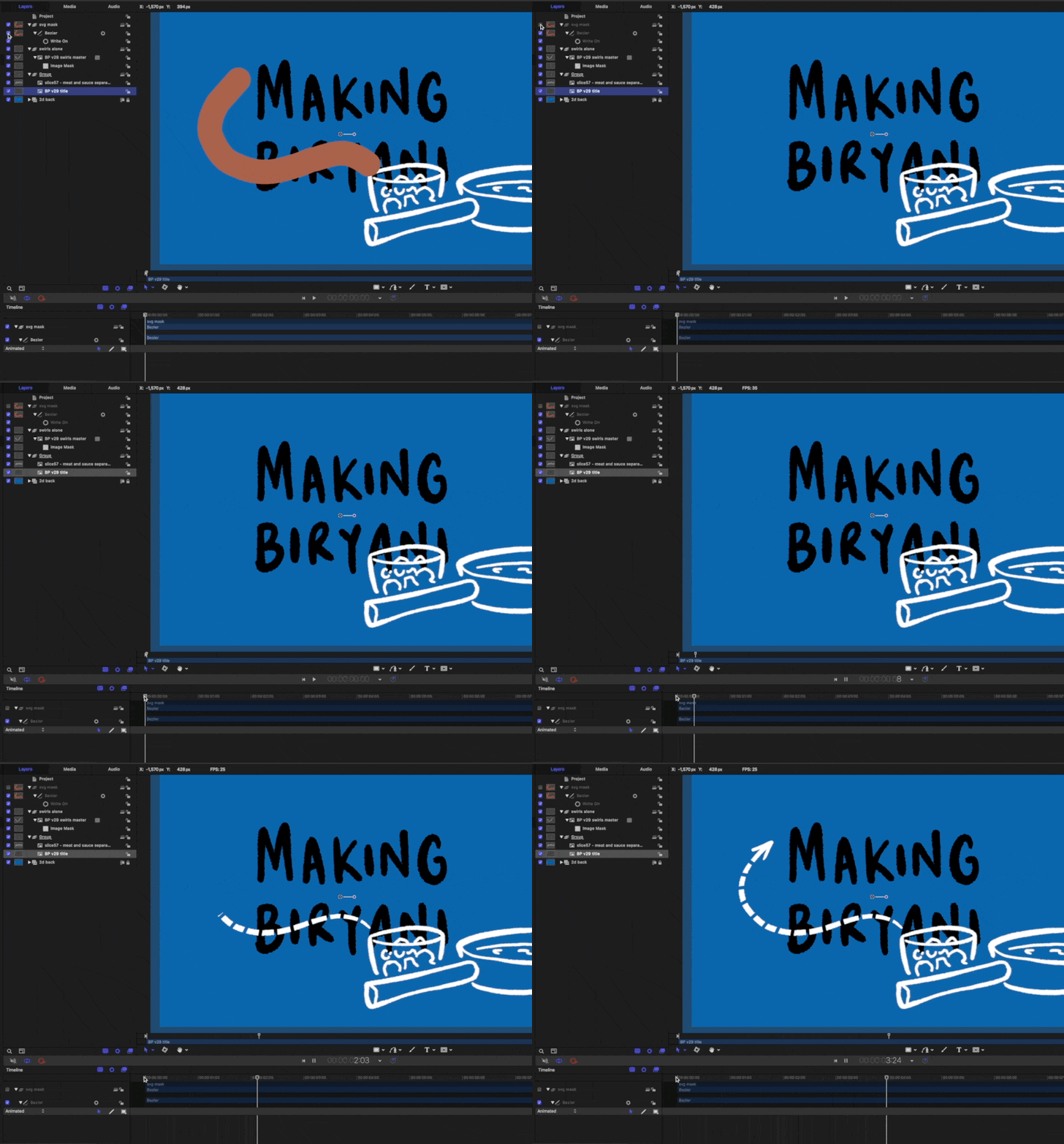
There is an image layer below the swirl layer - this is linked to the (switched off) brown drawn SVG swirl mask above.
This would have allowed greater flexibility with lines being properly clipped and allow for overlapping to occur. Anyways you live and learn.
The massive gain here is that I am now confident in developing much more complex infographic explainers. When I first started out I depended on resolution-limited screen captures as I drew on Procreate on an iPad. Now I can transfer (supposedly) infinite hand-drawn vectors from CSP into Affinity - then out through PP - and into the Motion/FCPX workhorse.